
Frequently Asked Questions
Everything you need to know before you buy — and after.
Using the app
Just unboxed it? Start with the setup guide. Everything below assumes your router is already paired.
Family members & devices
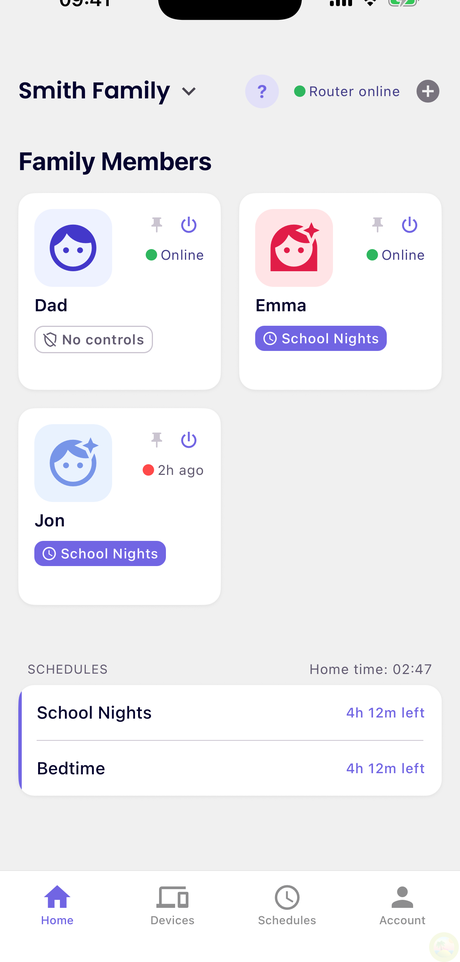
Open Family Members and tap Add Member. Give them a name and a Profile image so everyone is easy to spot at a glance.
A member is a person, not a device. You link their devices to them in the next step — that's what lets one rule cover someone's tablet, laptop and console at once.
Go to Devices → Wi-Fi Networks and tap your network. The app shows a QR code — point the new device's camera at it and it joins without anyone typing the password.
Useful for a child's tablet or a guest's laptop when you'd rather not read a long password out loud.
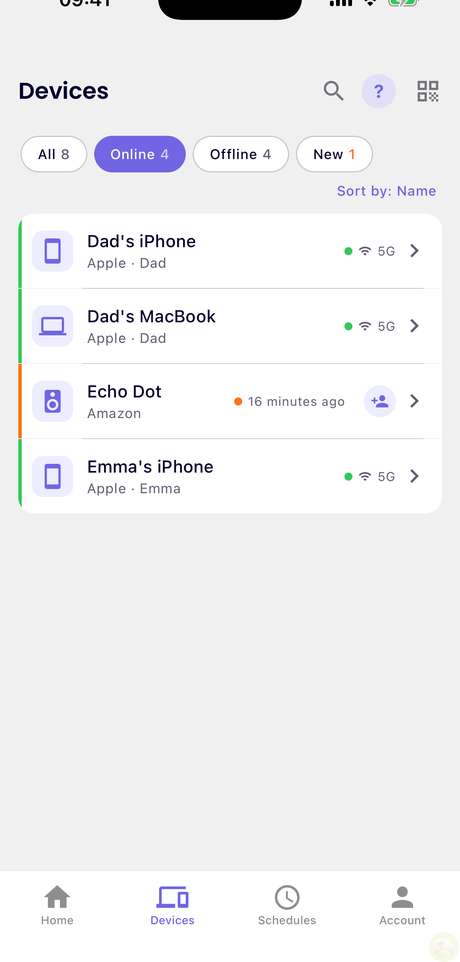
Anything that joins your Wi-Fi shows up under Devices. WhiteCat guesses the name and type from how the device identifies itself, so most arrive already labelled — "Samsung TV", "iPad".
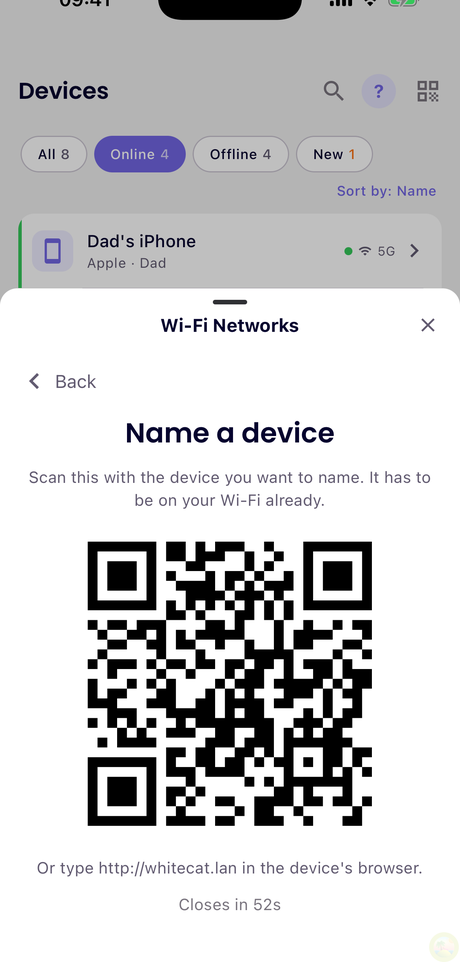
For the ones that don't, the app has a purpose-built trick. Go to Devices → Wi-Fi Networks → Name a device. It shows a short-lived QR code — scan it with the device you're trying to identify, or open http://whitecat.lan in that device's browser. The router works out which device is asking and lets you name it on the spot.
The device has to already be on your Wi-Fi, and the code expires after about a minute — generate a new one if it lapses.
Then set Family member to assign it to a person, and that person's rules apply immediately.
It gets filtered internet: social, gaming, streaming and adult sites stay blocked until you assign it to someone. Nothing slips through while you're still setting up — an unassigned device is never less restricted than an assigned one.
The one that best represents whether that person is home and online — usually their phone. Their status in the app follows that device. It doesn't change any rules.
In the app, generate an access code. It appears as a QR code for the other parent to scan with their phone — or you can read the short code out loud if they're not in the room.
Codes expire after 15 minutes. Generate a fresh one if it lapses. Both parents then have full control from their own phones.
Rules & schedules
Family rules apply to everyone — the household baseline. Blocking adult content or gambling belongs here.
Member rules apply to one person and win where they disagree. So you can block TikTok for the whole family, then allow it for a teenager, without touching anyone else.
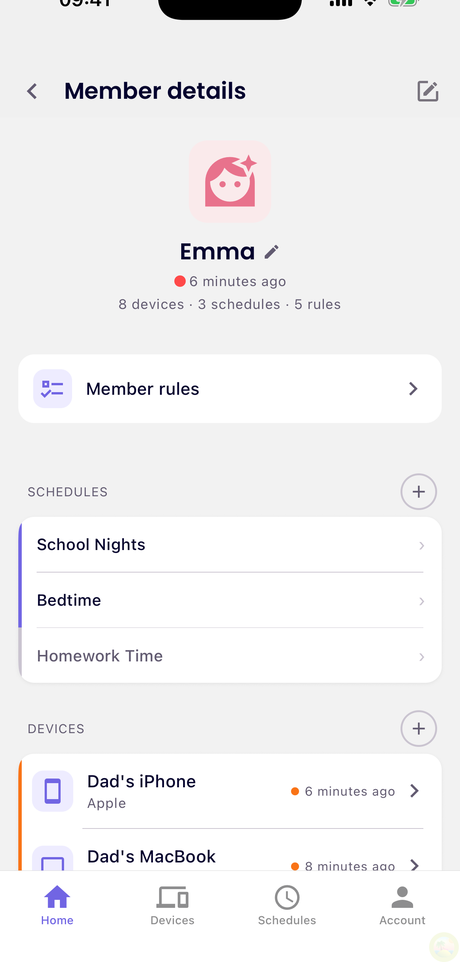
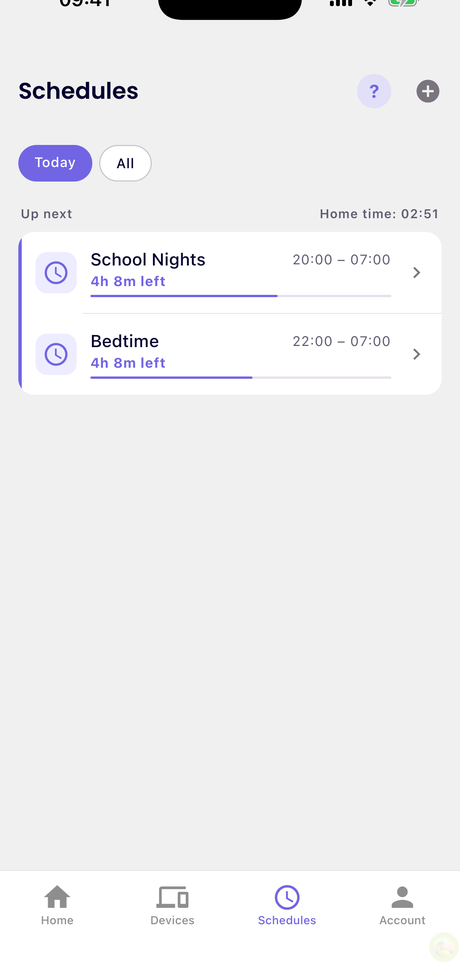
Open Schedules and tap Create Schedule. Give it a name you'll recognise later — "School nights", "Homework" — pick the days and the time window, then choose what it blocks.
Last step matters: add people under Assigned members. A schedule with nobody assigned does nothing, and the app will tell you so.
Swipe the schedule row to the right and tap +15m. It pushes the current block back by fifteen minutes for that person, then everything returns to normal on its own.
Swipe left on the same row instead to stop a schedule or revert it. Swiping all the way across fires the action straight away, without the extra tap.
Swipe again for another fifteen. Nothing to undo afterwards — it's designed for "let me finish this level" without reopening the rules.
Yes — pause the internet for that member and every device linked to them drops offline immediately, until you switch it back. Their normal rules resume untouched afterwards.
Most VPNs are already blocked without it. Your rules include a VPN & proxy category covering the major providers, and that blocking works by name — when an app asks for a known provider's address, WhiteCat refuses to answer.
Strict Mode changes the question from what should I block? to what should I allow? On a device in Strict Mode only approved destinations are reachable, and everything else is dropped at the network level — whatever port or protocol it uses. That is what makes it hold: the usual ways around a filter all depend on avoiding the name lookup — an app with an address built into it, a private VPN on a server nobody has heard of, an unusual port. None of them are on the list, so none of them get out.
⚠️ It is deliberately blunt. Anything not approved stops working, including smart-home gadgets and game servers that talk to fixed addresses. That's why it's a per-person setting — turn it on for a teenager who has worked out what a VPN is, not for the living-room TV.
Wi-Fi
Open the Wi-Fi configuration and edit Network name (SSID) or Password. The app rates the password as you type.
Changing either disconnects every device once — they'll need the new details. Do it when nobody's mid-film.
Only if you're having trouble. Auto picks a clear channel by itself. Changing these causes a brief disconnection, and the orange channels are radar (DFS) ones — permitted, but Wi-Fi can drop for a moment if a radar is nearby.
Common setups
The things most families ask for first.
Block YouTube on my son's tablet
- Make sure the tablet is assigned to him: Devices → the tablet → Family member.
- Open his profile → Member rules.
- Find YouTube in the service list and block it.
This covers every device linked to him, not just the tablet. To block it on the tablet alone, give the tablet its own member.
Bedtime for the whole family
- Schedules → Create Schedule, name it "Night".
- Sunday to Thursday, 21:00 to 07:00.
- Block streaming, gaming and social.
- Under Assigned members, add the children — or everyone, if the adults want the same discipline.
Leave the schedule running across midnight; it handles the rollover.
Stop the TV after 21:00, but leave the laptops alone
- Create a member called "Living room" and assign the TV to it.
- Create a schedule for 21:00 to 07:00 blocking streaming.
- Assign it to "Living room" only.
Members don't have to be people. A room or a single device works just as well when you want a rule to stay narrow.
No gaming sites on the laptop during homework
- Create Schedule, name it "Homework".
- Monday to Friday, 16:00 to 18:00.
- Block gaming — and social, if that's the real distraction.
- Assign it to the child.
Keep the window short. A rule that bites all evening gets argued with; one that ends at six doesn't.
"Five more minutes!"
- Open that person in the app.
- Tap +15m.
It expires on its own — no need to remember to put the rule back. Tap again if you're feeling generous.
Setup & Hardware
Controls & Blocking
Privacy & Data
By default we keep no record of what your family does online. Screen-time reporting is something you switch on, per family member, and can switch off again at any time. Leave it off and the router still blocks and schedules exactly as you set it — it simply keeps no history.
Nothing is stored by default. Screen-time history and product-improvement data are opt-in. Switch them on and we keep only what those features need — which service, for how long, for which member — never the content of a page, a search or a message. Switch them off and that stops.
The router does exchange the minimum needed for the service to run at all: whether it is online, its firmware version, and the rules you have set — that is what lets you change a rule from your phone while you are out. Where that data lives and how long it is kept is set out in the privacy policy.
Subscription & Pricing
Family — Full parental controls. Per-person schedules, app-level blocking (TikTok, YouTube, Gaming), SafeSearch enforcement, and weekly usage reports.
Everywhere (coming soon) — Everything in Family, plus controls that follow your child's phone outside the home on mobile data.
Still have a question?