
Set up your WhiteCat
Five steps, about 10 minutes. You don't need to know anything about networks.
Plug it in
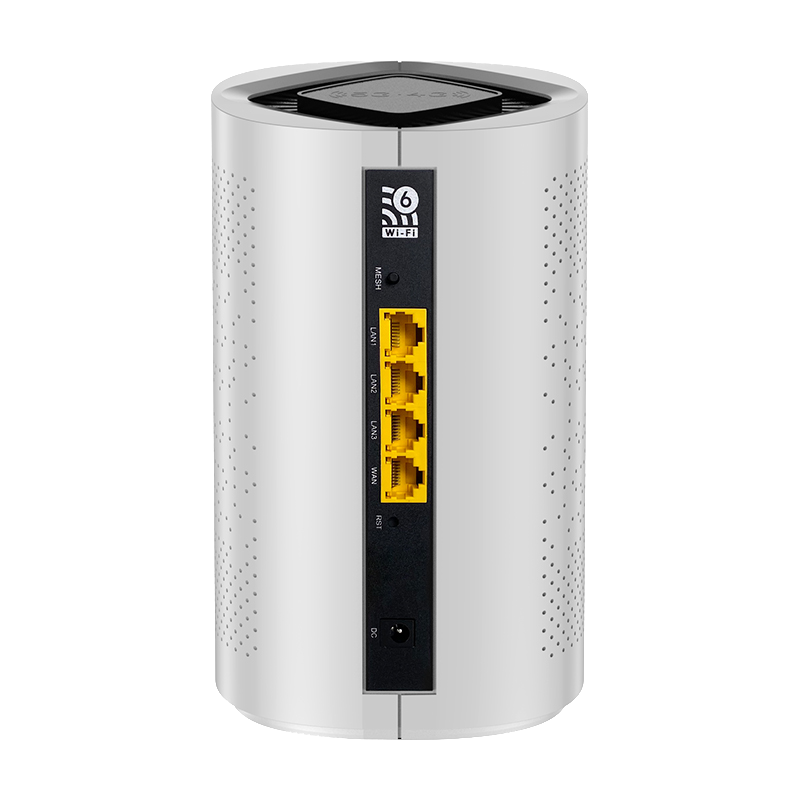
In the box: the WhiteCat router, a power adapter and an Ethernet cable.
Run the Ethernet cable from your existing internet box into the port marked WAN on the back of the WhiteCat. Then plug in the power.
Give it about a minute. When the status light starts alternating green and red, it's booted and ready to pair.
Get the app
Everything is set up from the app. It's free.



Reading this on a computer? Scan with your phone's camera — it opens the right store automatically.
Create your account
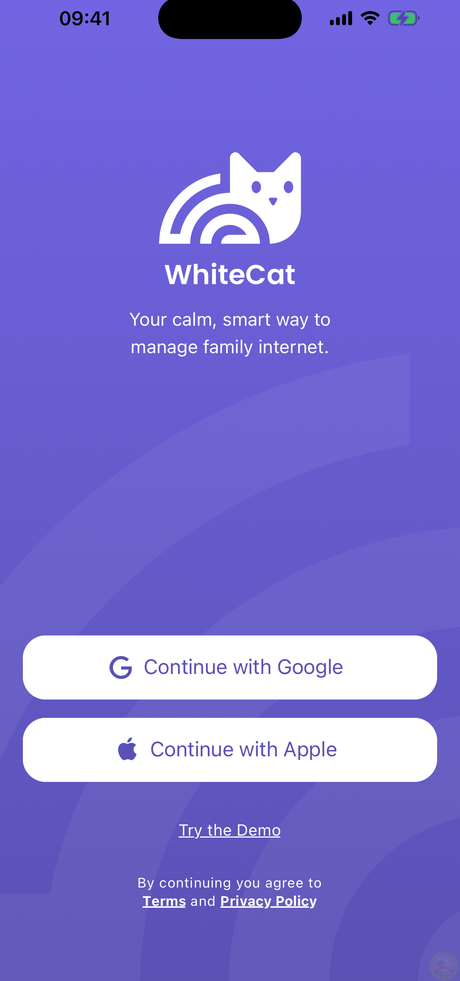
Open the app and tap Continue with Google or Continue with Apple. There's no separate password to invent.
Use the account you want the household's receipts and alerts to go to. You can invite a second parent later.
Pair the router
The app walks you through this. It asks your phone to join a temporary Wi-Fi network called WhiteCat-Setup for about 30 seconds, exchanges a key with the router, and switches you back.
You'll then choose your Network name (SSID) and Password — this is the Wi-Fi your family will use from now on.
When pairing finishes the status light turns solid blue. That's the router settled and healthy.
Move your devices across
Connect your family's devices to the new WhiteCat Wi-Fi — tablets, TVs, laptops, consoles, phones. Anything still on the old Wi-Fi isn't protected.
To avoid typing the password on every device, the app can show a QR code: Devices → Wi-Fi Networks, tap your network, then point the new device's camera at the code.
That's the setup done.
Your home is already filtered. Everything from here — adding family members, blocking a specific app, bedtimes, granting an extra 15 minutes — is on the help page, with worked examples.
Something not working?
- No internet after plugging in? Check the cable is in the port marked WAN, and that your existing modem still shows online.
- App won't pair? Restart the router and try again. If it still won't, hold a paperclip in the reset hole for 15 seconds, then let go — leave the power connected — and start over.
- Need a person? Email [email protected]. We answer personally.